Information for New Adult Professional Students
Welcome to Immaculata! This new student packet provides important information on how to register for your first classes at IU and also provides details regarding the various resources and systems that will help you be successful in your academic journey!
First Step – Log in to the MyIU Portal
The Office of Technology Services sends all newly deposited students their login credentials and instructions. Please go to www.immaculata.edu and click on MyIU to begin the login steps.

Once you complete the MyIU login process, you will be directed to the MyIU Portal. If you need any technical assistance logging in, please call the Office of Technology Servies help desk at 484-323-3282.
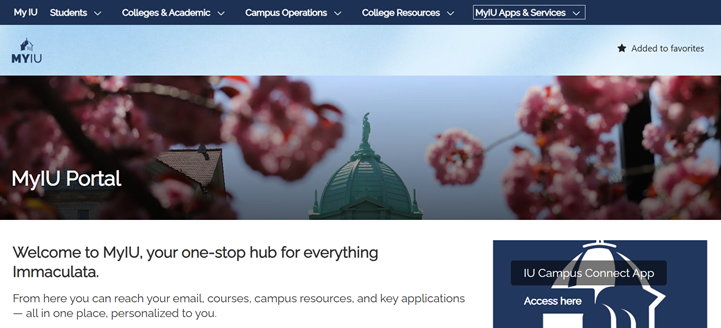
Students should familiarize themselves with applications in the MyIU portal. These tools and resources are essential for a successful student experience.
Important Portal Applications
There are two ways to navigate to frequently used items in the MyIU Portal. You can use the drop down menus at the top or click on the buttons below for direct access.
Self-Service IU or SSIU
Go to MyIU Apps & Services, click on Self-Service (Banner/Ellucian), and then SSIU Student.

OR

SSIU (or Student Self Service) is the Immaculata student information system. This is where you will go to look up and register for classes, access your grades/transcript, apply for graduation, view holds, and access the student account center. Please familiarize yourself with the many useful tools in SSIU early on!
Moodle
Go to MyIU Apps & Services, click on Academics & Learning, and then Moodle.
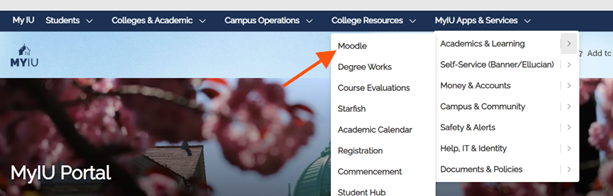
OR
Moodle is an online Learning Management System (LMS) that provides students and faculty the opportunity to engage online with digital learning solutions. Moodle will be used for all of your online courses and also frequently as a supplement to your in-person courses.
Degree Works
Go to MyIU Apps & Services, click on Academics & Learning, and then Degree Works.

OR
Degree Works is a degree audit system accessible through MyIU. This computerized degree audit program and academic advising tool is designed to assist you and your advisors in reviewing your degree progress. A web-based program, Degree Works re-organizes your transcript chronologically and categorically, easily identifying the courses you have completed and the courses you still need in order to fulfill your degree requirements.
IU Alert
Go to MyIU Apps & Services, click on Safety & Alerts, and then IU Alert.
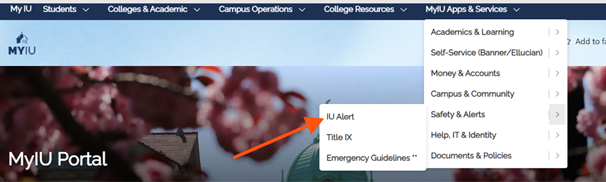
IU Alert delivers important emergency alerts, notifications and updates to any mobile device or email you choose to register. Sign up for IU Alert in MyIU to receive important updates and notifications!
- Snow and storm delays/cancelations
- Severe weather
- Campus notifications
Student Email
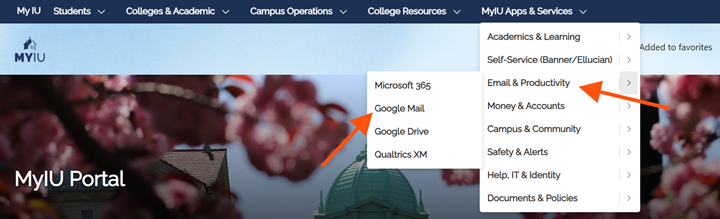
Goto to MyIU Apps & Services, Email & Productivity and click on Google Mail
OR

Your Immaculata email will be your username@mail.immaculata.edu. This is the official method the University uses to communicate with students. Please be sure to check your IU email daily.
Registering for Courses
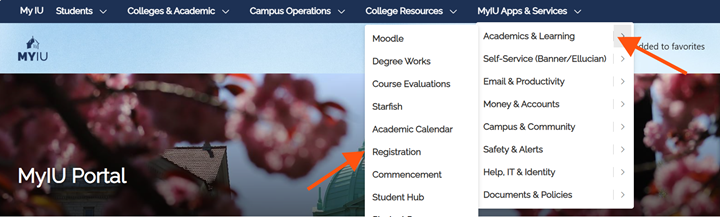
Course registration is managed in SSIU. Log into MyIU and click on MyIU Apps& Services, then Academics & Learning, then Registration
OR
Once you are in SSIU, please follow the steps below to register.
Please note that students are able to add/drop classes in SSIU through the end of the add/drop period. Please contact your advisor or email adultproadvising@immaculata.edu with any questions.
Follow the steps on the next page to complete a course registration.
Student Registration Instructions
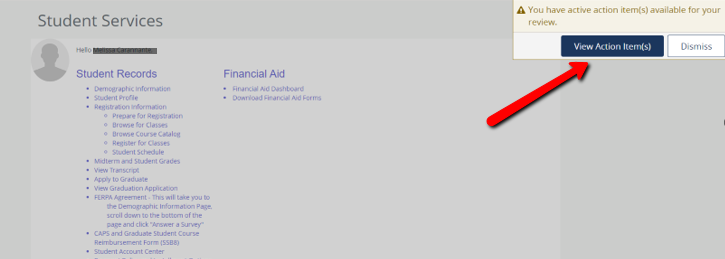
Log into the Student Services dashboard. If you receive a message regarding Action Items in the top right corner, click View Action Items to complete your Student Financial Responsibility Agreement (SFRA).
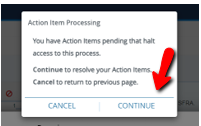
Please complete the most recent Student Financial Responsibility Agreement.
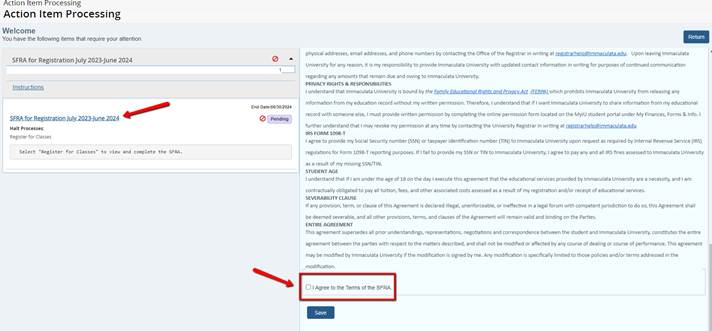
After saving the SFRA, click Return at the top right corner OR

Click on the Student Services Dashboard tab on your browser to return to the Student Services menu:

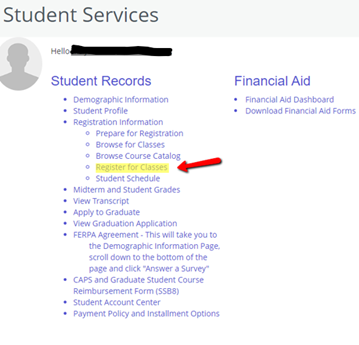
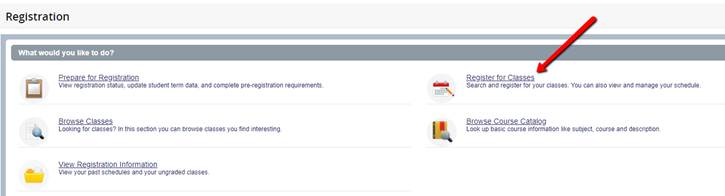
Click Register for Classes:
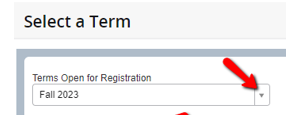
Select the Term you are starting your classes (i.e. Spring 2027) and click continue:
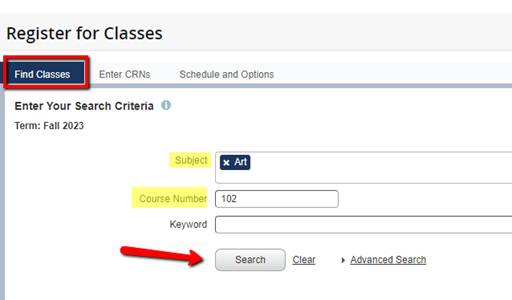
Under Register for Classes, on the Find Classes tab, enter at least one subject (and course number if you know it), and click Search for all course offerings.
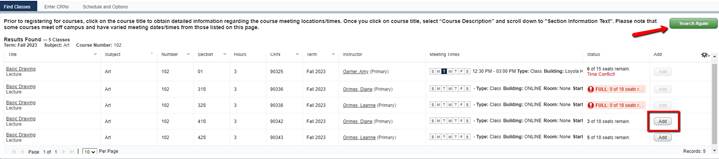
Review the courses, and click Add on your chosen section (note you cannot add a course listed as “Full” or a class that shows a “Time Conflict!” with another course on your schedule. To choose another course, click the green “Search Again” button at the top right corner.
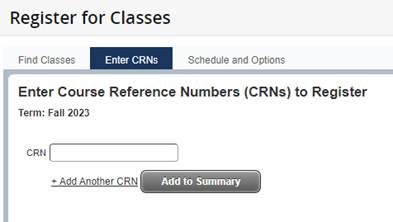
(note, if you know the crns, you can choose the “Enter CRNs” tab instead of Find Classes. Type a CRN and click “Add to Summary.” You can also click “Add Another CRN” to register for multiple courses at once.)
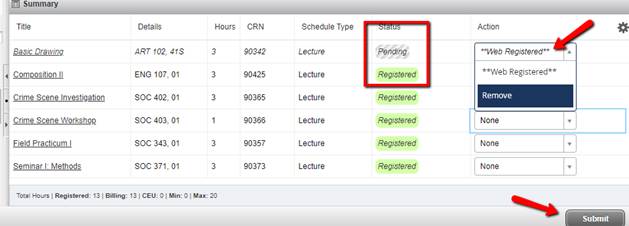
Any course you add will appear in the bottom right corner. Under Action, you can choose to register or remove the class. Click Submit in the bottom right to add your courses to your schedule.
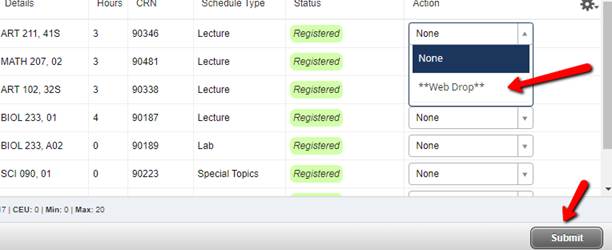
If you decide to drop this course after submitting the registration, go back to the drop down menu and click “Web Drop,” then Submit:
You will also have a calendar view of the classes on the bottom left to assist you in building your class schedule:
Important Registration Notes:
- You will need to complete the Action Item (Student Financial Responsibility Agreement – SFRA) to register
- If you have any technical difficulties, contact the IU Support Center/Help Desk at (484) 323-3282.
- If you have questions about registration, contact your academic advisor.
Now that you are registered for classes, please review the following information to help you start strong at IU!
Billing
You are financially responsible for your course(s) once you have registered. Please note that the lack of attendance, cessation of attendance, and/or not logging into an online course does not preclude students from financial responsibility for a course. Your bill is visible via MyIU/SSIU Student Account Center. Any changes to your semester registration (adds, drops, or withdrawals) will be indicated on your student account found on S.S.IU. You will have the option of paying for your entire semester in advance, or you may wish to pay in installments. Full payment for the semester will be due prior to the start of the semester.
If you wish to use the IU Installment Plan and pay in four installments, you will need to complete the IU Installment Plan. Get more information about the payment plan.
Drops or withdrawals from classes are processed in accordance with the drop/withdrawal policy.
Students Utilizing Tuition Reimbursement
Students who receive tuition reimbursement from their employer will find the following information on SSIU to be helpful. Log on to SSIU. Click on “Student,” and “Course Reimbursement.” Only grades for courses in which the full semester has been paid are viewable.
Textbooks and Course Materials
Textbooks for all courses may be ordered from Immaculata’s bookstore Immaculata’s bookstore or you may reference the ISBN number for each book that is listed and purchase them from a vendor of your choice. Once on the bookstore site, you can look up your textbooks with your Student ID number or by searching for the class number and section. Please make sure you have purchased your book PRIOR to the start of each class.
Financial Aid and Tuition Reimbursement
If you would like to apply for financial aid and have not yet done so, you may begin that process by filing a FAFSA. Once you’ve completed that process, view step-by-step instructions and complete the necessary forms needed at Immaculata University. Should you have questions about your financial aid package, please contact our Financial Aid Office at 610-647-4400x3028 or finaid@immaculata.edu.
Return of Title IV Funds
The Financial Aid Office is required by federal statute to determine how much financial aid was earned by students who withdraw, stop out, are dismissed, or take a leave of absence prior to completing 60% of a payment period or term. If you are utilizing financial aid to cover your tuition costs, it is very important to understand how changes in your registration may impact you financially.
For more information about how a withdrawal from a course may impact your financial aid, view the financial aid policies.
FERPA
The Family Educational Rights and Privacy Act of 1974 (FERPA) as amended is a federal law which is designed to protect the privacy of and limit access to the educational records of students. See additional information.
If you would like to designate an individual(s) to whom we can provide information, please go to MyIU, then SSIU, and then click on the Student tab, then FERPA Agreement and follow the prompts from there.
Credit for Prior Learning (CPL)
You may be able to earn college credit for prior learning experiences saving you both time and money. These credits are most commonly applied to general elective credits.
Prior experiences that may qualify for CPL include any of the following:
- Workplace training
- Technical/secretarial schools
- Electronics/computer training
- Military training
- Bible school coursework
- Adult, evening, or non-credit programs
- Professional licensures
Students may earn credit by:
- testing out of requirements through CLEP, DANTES or Challenge Exams;
- providing adequate documentation of prior college-level training.
Note that there is a process involved for students to apply for Credit for Prior Learning. Speak with your academic advisor early in your academic career if you are interested in learning more about Credit for Prior Learning. Students are encouraged to complete the credit for prior learning process no later than one semester prior to graduation.
Learn more about credit for prior learning.
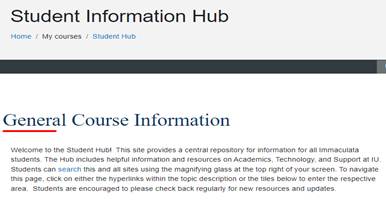
Student Hub
For additional updated helpful information, please click on the Student Hub in Moodle.
Student ID
It is recommended that students obtain a university photo ID. Get additional information and instructions on how to obtain your ID.
Parking Pass
If you are taking an on-campus class, please be sure to purchase a parking permit through the Campus Safety Office. Get additional information.
Office of Technology Services (OTS)
OTS is available by phone and on campus. The office is located in Good Counsel Hall, Terrace Level. They can be reached by phone at 484-323-3282. Please view their webpage for additional information.
Please reach out to adultproadvising@immaculata.edu with any additional questions! We look forward to supporting your educational goals at IU!