TIMS Instructions
Once you have successfully completed all required coursework, including your practicum (clinical experience, internship, or student teaching), and testing* please follow the steps below:
Step 1: Advisor Verification Form
Complete the Advisor Verification Form and submit it to your advisor for review.
Step 2: TIMS Application
Complete the Teacher Information Management System (TIMS) application through the Pennsylvania Department of Education (PDE) website. Instructions for completing this application begin below.
Once your application has been reviewed, it can be confirmed and submitted to PDE for processing.
*Important Testing Information
Please ensure that all required test scores are submitted to both the Pennsylvania Department of Education and Immaculata University.
For guidance on testing requirements:
- Contact Leah Bustraan in the Certification Office for test information and study materials.
- See test information on this site
- Or visit the PDE website
If you have any questions, please feel free to contact me at lbustraan@immaculata.edu or 484-323-3297. I’m happy to assist you. Thank you!
Leah Bustraan
Director of Student Teaching and Certification Officer
Immaculata University
- Logging in/Creating an account:
Go to the main PA Department of Education website first – www.education.pa.gov
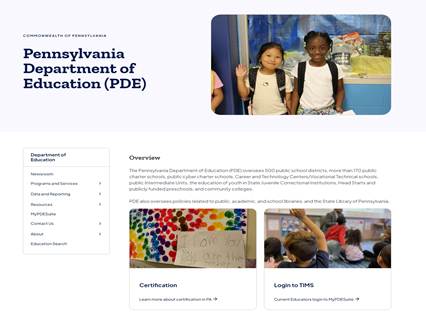
- Select “Login to TIMS” graphic.
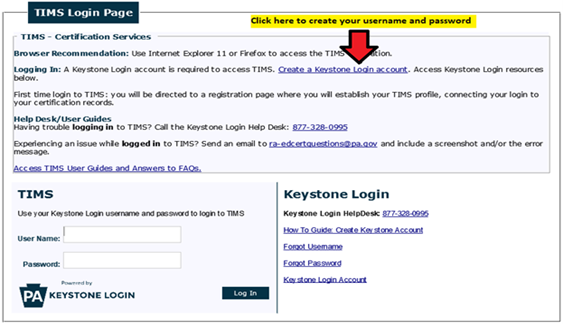
- The PA Keystone Login page will ask you to enter your Username and Password to access TIMS. If you have not created your Keystone Login, please choose “Register Username” to create a Keystone Login. If you already have an account, skip to Step #5.

For information refer to Creating a Username and Password instructions in #4.
- Creating a Username and Password:
Click the ‘Create Keystone Login Account’ link.
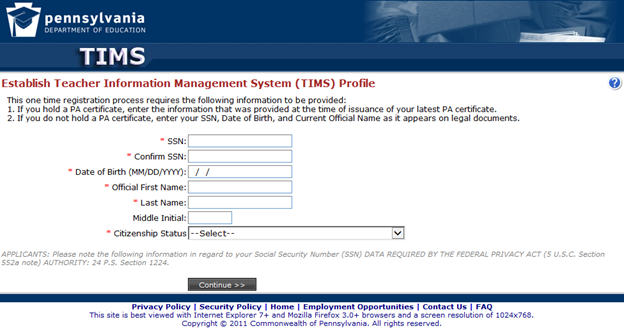
You will need to establish your TIMS profile. See below.
- New Credential Application:
Now that you are logged into your TIMS dashboard, you are ready to submit an application for certification (or adding an endorsement if you already have a certification). Look on the left-hand side for the “Applications In Process” section. Click on the button called “New Credential Application.”
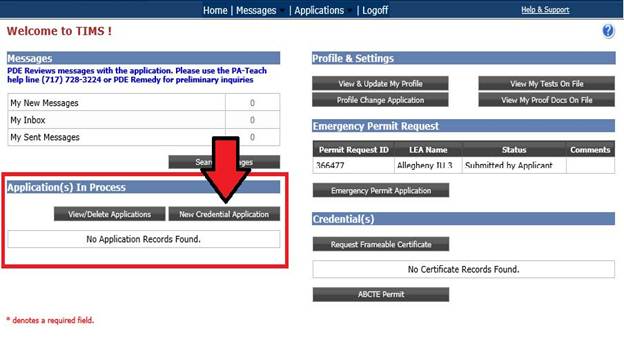
You will then need to choose the Credential Type and Requested Subject Area for your application request. See the TABLE BELOW TO CHOOSE THE CORRECT CREDENTIAL TYPE AND SUBJECT AREA.
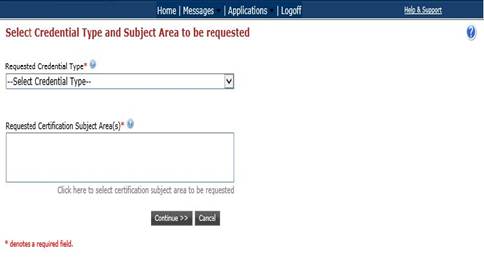
| Educator Preparation Program: | Credential Type: | Certification Subject Area(s): |
|---|---|---|
| Instructional I Grades PK-4 | Instructional I | Grades PK-4 (2825) |
| Instructional I Special Education PK-12 | Instructional I | Special Education PK-12 (9231) |
| Instructional I Grades PK-4 Instructional I Special Education PK-12 |
Instructional I | Grades PK-4 (2825), Special Education PK-12 (9231) |
| Instructional I Social Studies 7-12 | Instructional I | Social Studies 7-12 (8875) |
| Instructional I Music PK-12 | Instructional I | Music PK-12 (7205) |
| Instructional I Biology 7-12 | Instructional I | Biology 7-12 (8405) |
| Instructional I Chemistry 7-12 | Instructional I | Chemistry 7-12 (8420) |
| Instructional I English 7-12 | Instructional I | English 7-12 (3230) |
| Instructional I Reading Specialist PK-12 | Instructional I | Reading Specialist PK-12 (7650) |
| Supervisory Supvr Special Education PK-12 | Supervisory | Supvr Special Education PK-12 (9215) |
| Supervisory Supvr Curriculum & Inst PK-12 | Supervisory | Supvr Curriculum & Inst PK-12 (2915) |
| Supervisor Pupil Personnel Serv PK-12 | Supervisory | Supvr Pupil Personnel Serv PK-12 |
| Administrative I Principal PK-12 | Administrative I | Principal PK-12 (1115) |
| Letter of Eligibility Superintendent PK-12 | Letter of Eligibility | Superintendent PK-12 (1150) |
| Educational Specialist I Elementary & Secondary School Counselor PK-12 | Educational Specialist I | Elementary & Secondary School Counselor PK-12 (1839) |
| Social, Emotional and Behavioral Wellness of PK-12 Students (1192) | Endorsement | Social, Emotional and Behavioral Wellness of PK-12 Students (1192) |
| Endorsement Science, Technology, Engineering & Math (STEM) Ed PK-12 | Endorsement | Science, Technology, Engineering & Math (STEM) Ed PK-12 (1181) |
| Endorsement Online Instruction Program PK-12 | Endorsement | Online Instruction Program PK-12 |
| Endorsement Mathematics Coach PK-12 | Endorsement | Mathematics Coach PK-12 |
| Endorsement Instructional Coach PK-12 | Endorsement | Instructional Coach PK-12 (1182) |
- Complete background questions:
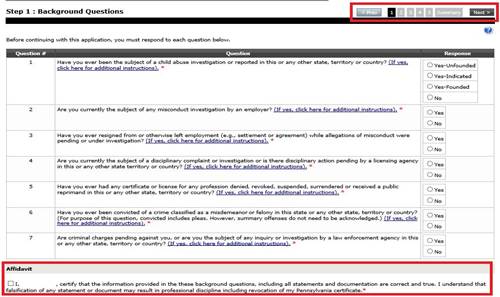
- Complete demographic information:
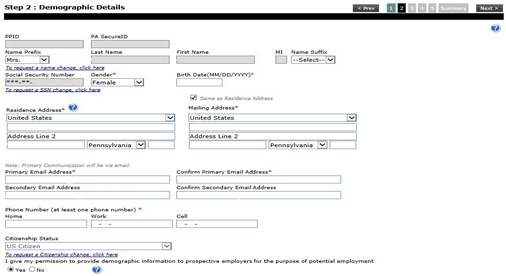
Note:
- Everything in the grayed-out boxes (PPID, PA Secure ID, Last Name, First Name, Middle Initial, and Social Security Number) cannot be edited on this page. All other fields can be entered or edited for corrections.
- If the field does not delete previous information – highlight the information, right-click with your mouse, and select either “Cut” or “Delete” to remove the information. You should then have a blank field again.
- The Education Tab:
To continue through the application, TIMS requires both your bachelor’s degree information AND your educator preparation program details. The educator preparation program is the coursework that prepared you for the subject area(s) you will be teaching. To add this information in your application, click “Add New” on the Education Details page.
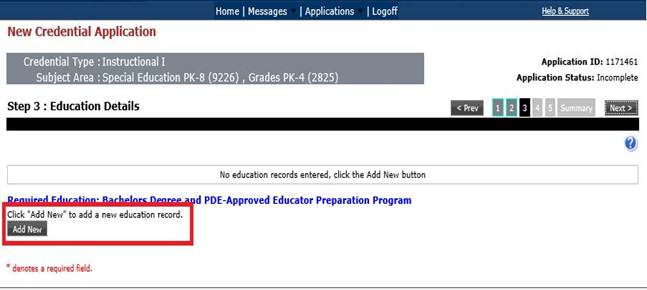
Figure 1: Disregard the text special education pk-8; this should be special education PK-12 (9231)
Then click the hyperlink to search for your institution. Search for Immaculata University.

After selecting your institution from the available list of schools, TIMS will auto-generate the institution’s address. You are not required to select an entry from the Contact Official Details, as it does not have a red asterisk (*) next to the field.
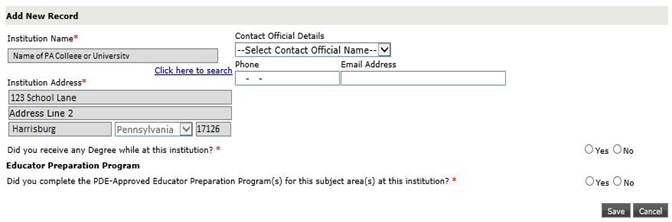
Next, you will see two sets of questions. The first asks, “Did you receive any Degree while at this institution?” You will need to add your bachelor’s degree and any additional degrees you may hold in TIMS by answering that question “Yes.”
You will then have to add the type of degree, date conferred (MM/YYYY), GPA, and Major Subject Area.
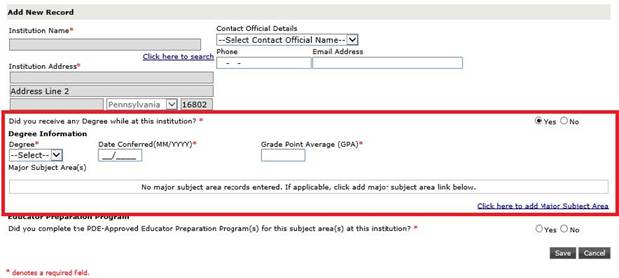
When you are looking for your subject area, search and select the major subject area that most closely matches the content area of the program that you completed. Your application will not be held up if you select the incorrect major subject area.
Note: If you make a mistake in the Date Conferred field and need to edit the numbers– highlight the information, right-click with your mouse, and select either “Cut” or “Delete” to remove the information. You should then have a blank field again.
Once you save your degree information, you can then move on to the second question. The second question asks, “Did you complete the PDE-Approved Educator Preparation Program(s) for this subject area(s) at this institution?” If you do not see the second question, exit out of the current education record, and add an updated entry.
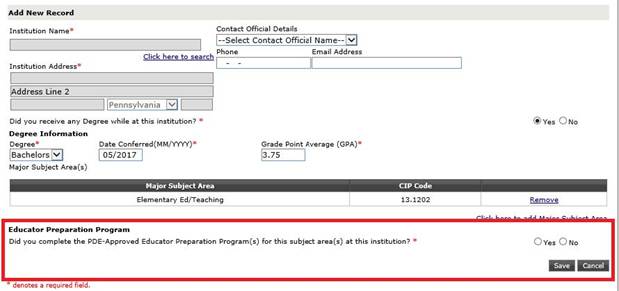
When you click “Yes,” it will ask you to add your Educator Preparation Program to the application. Click the hyperlink to add additional details.

Note: If you have applied for multiple subject areas, you will need to add all areas in this educator preparation program section.
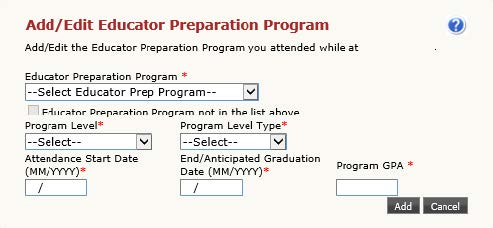
Once all educator preparation programs have been added, you will see your full education record on the education tab. It will have your Institution Name, Institution Address, Degree Information, and Educator Preparation Program all complete. In the bottom right, click “Save.”
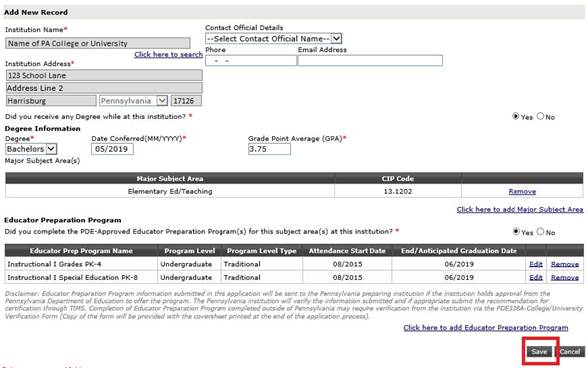
Figure 2: Disregard the text special education pk-8; this should be special education PK-12 (9231)
You will now have a saved entry with your degree and educator preparation program recorded. If you need to add additional degrees or education records, click “Add New” to continue entering information. Otherwise, click “Next” to move to the next page.
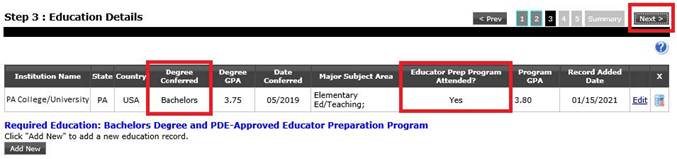
You will be asked to complete a survey about your educator certification program provider. The PA Department of Education is seeking feedback on the quality of the programs that prepare educators for certification. The responses to this brief survey do not affect the individual who completes them, nor his/her certification.
- The Certification Tab:

- If this is your initial Pennsylvania certificate, this page will be blank.
- If you have any previously issued Pennsylvania certification, you will see them listed in the middle of the page.
- If you have any Out of State certifications, check “Yes” at the bottom of the page to Add a new out of state record.
- Summary Tab:
The final page of the online application is your Summary Tab. The Summary Tab allows you to review the information entered.
- Payment Tab:
Payment for your application can be made by credit card or by money order.
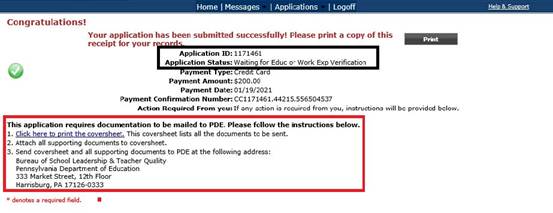
- Submitting Documentation- The TIMS Coversheet:
You will receive a TIMS coversheet for each application you submit. PDE’s address is included in the bottom right corner. If “Other” is the only thing listed on your coversheet, you are not required to send anything to our office, including the coversheet.
- Check the Status of Your Application:
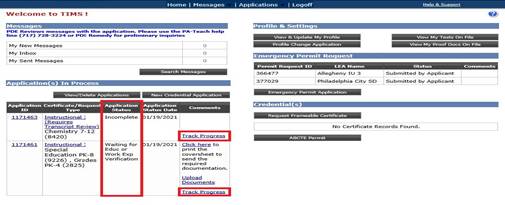
Additional Resources for TIMS:
If you have problems with your Username and/or Password, please contact the Keystone Login HelpDesk at (877) 328-0995.